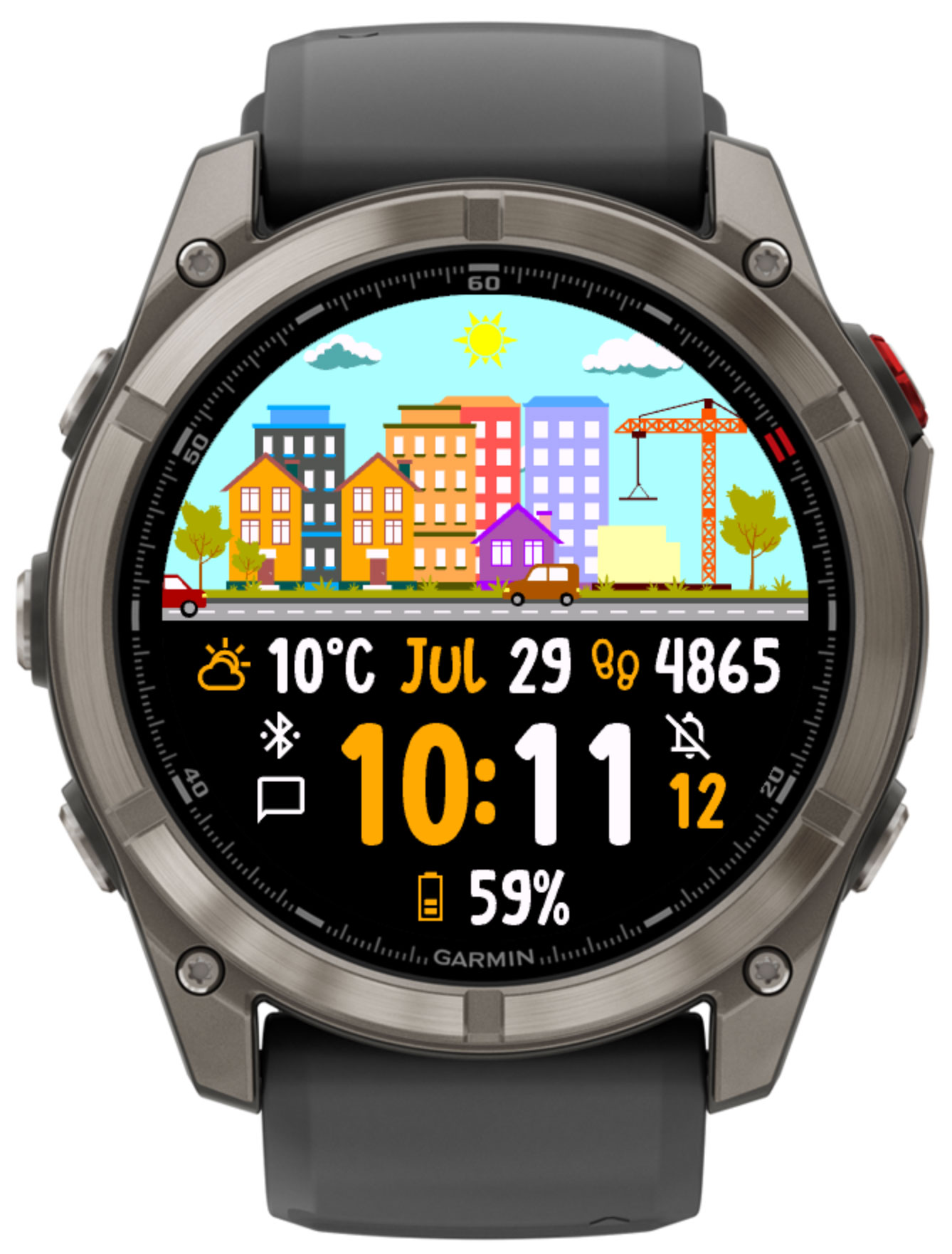
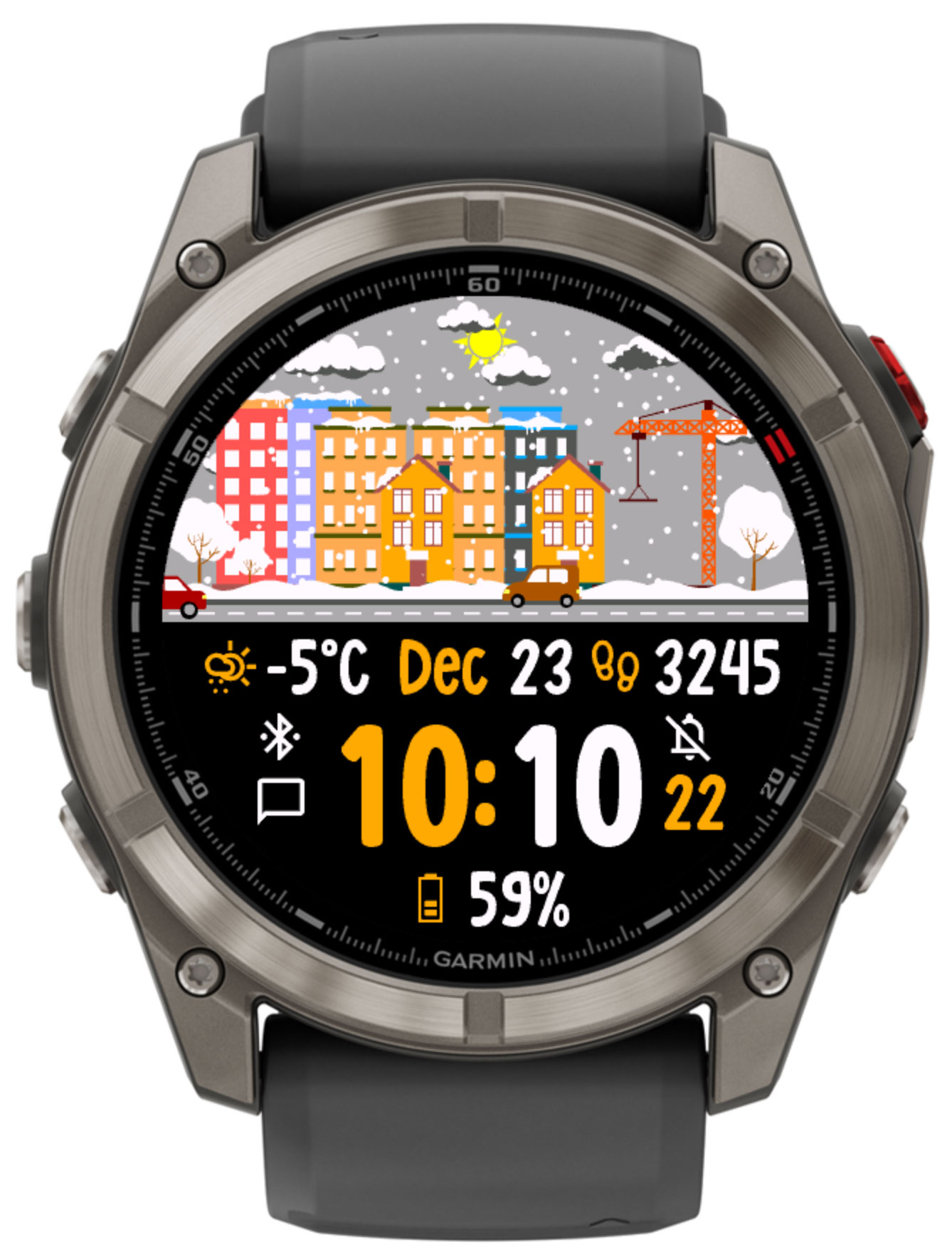
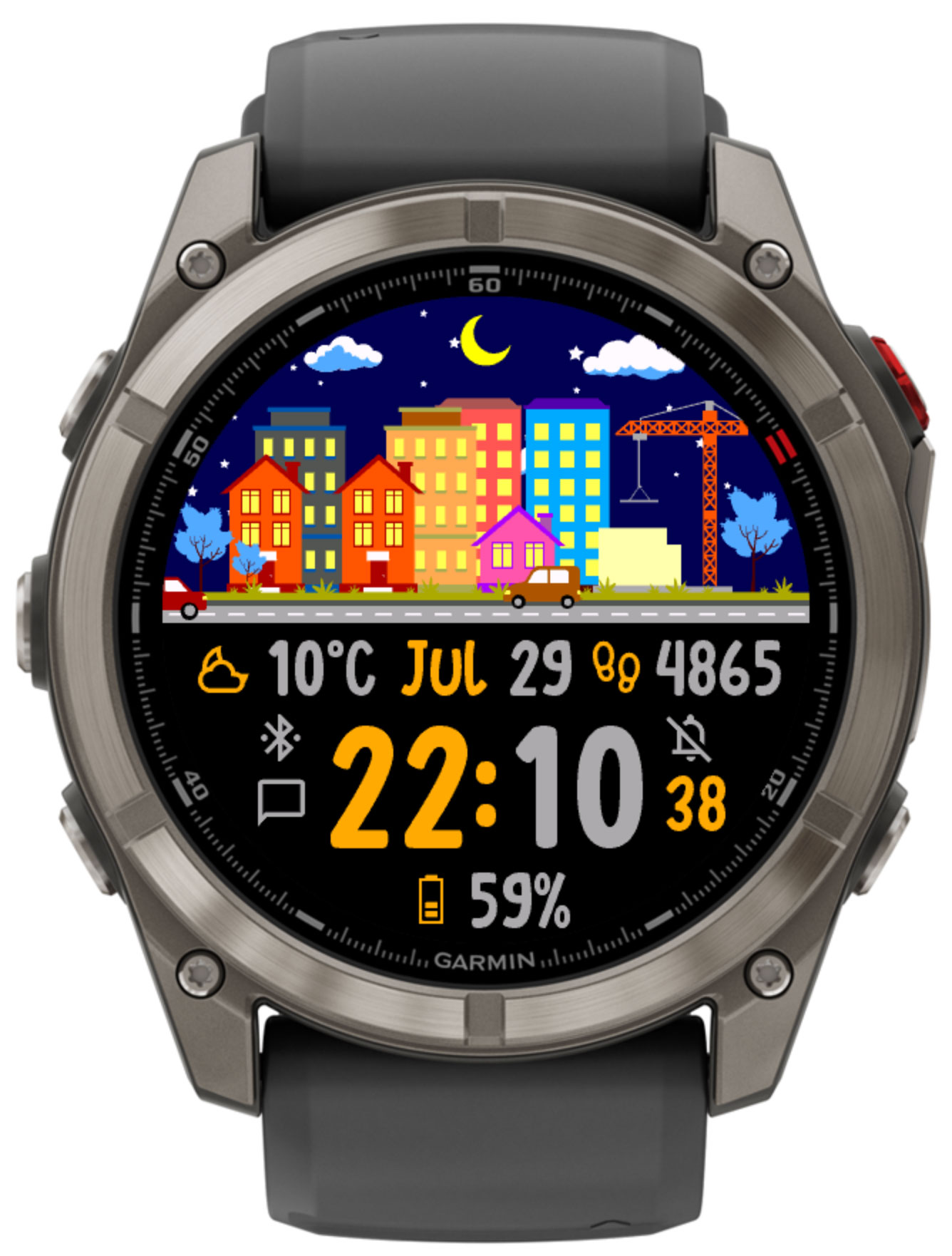
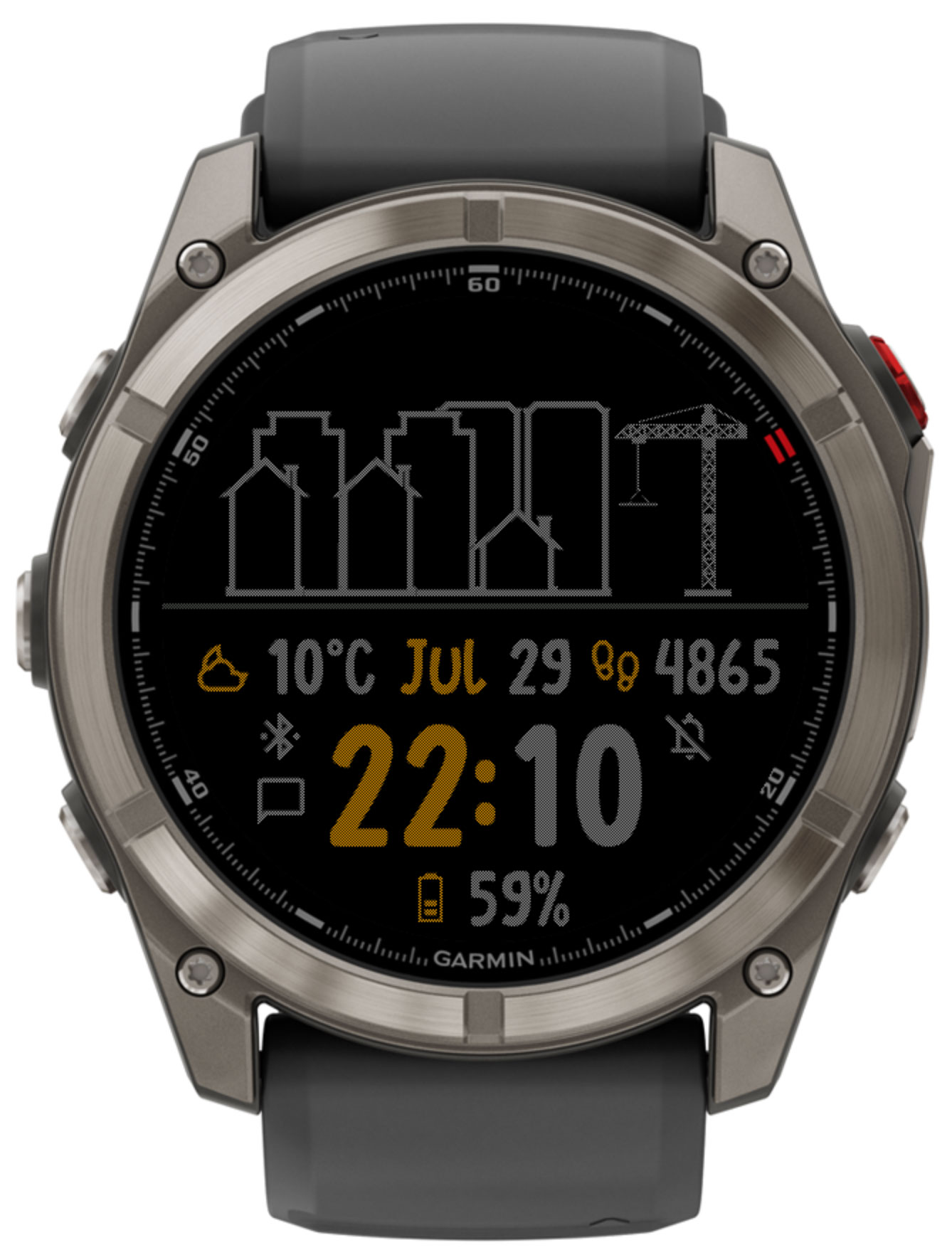
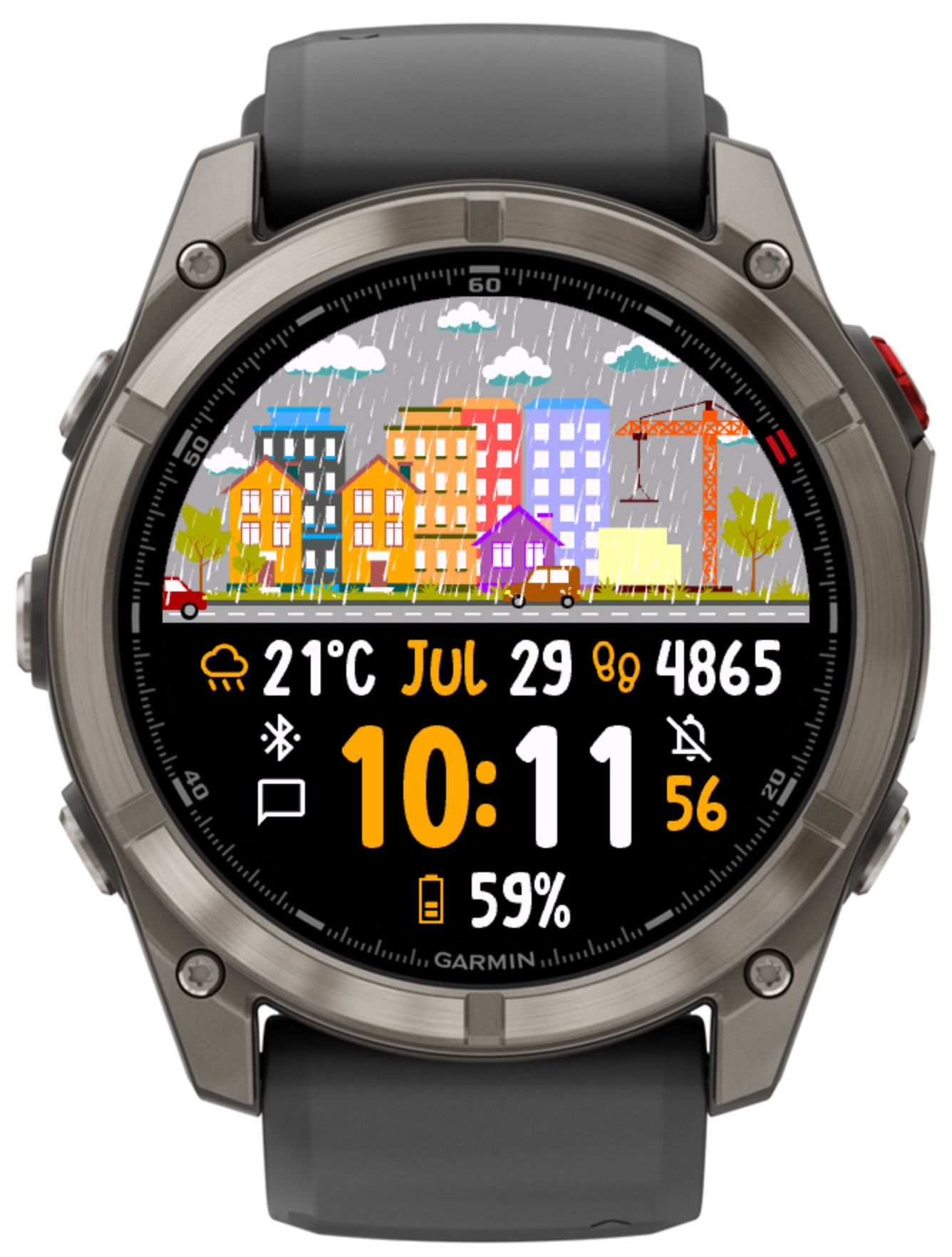
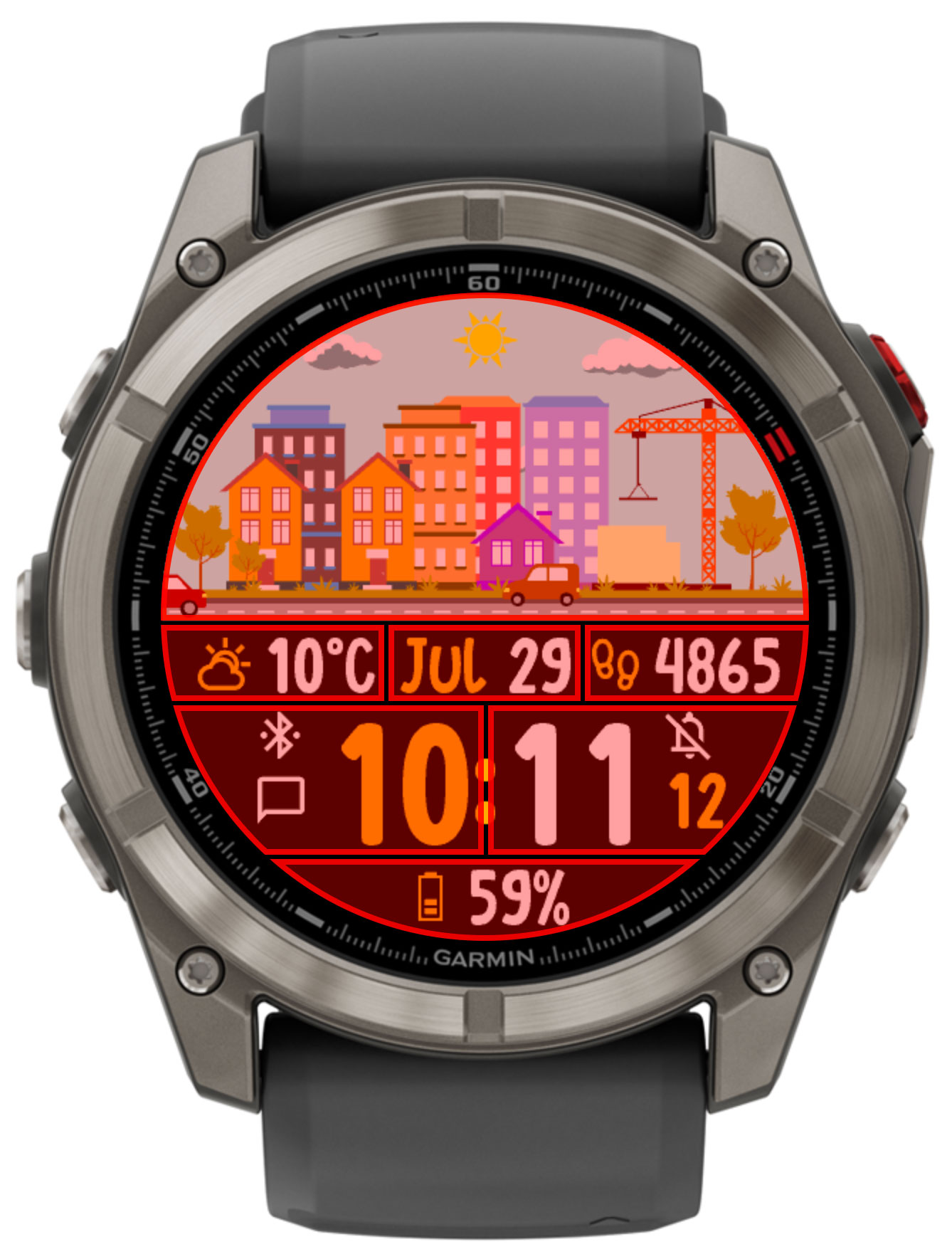
A watch face that turns your last 7 days of activity into a living city skyline. Seven buildings grow with your step-goal progress, a small construction scene tracks today, an animated sky shifts with the weather and season, and day/night themes, configurable data fields and tap-to-launch native widgets fill in the rest — a city that's always a little bit yours.
Available in: English, Deutsch, Français, Italiano, 日本語, 한국어, Polski, Русский, Español, 简体中文
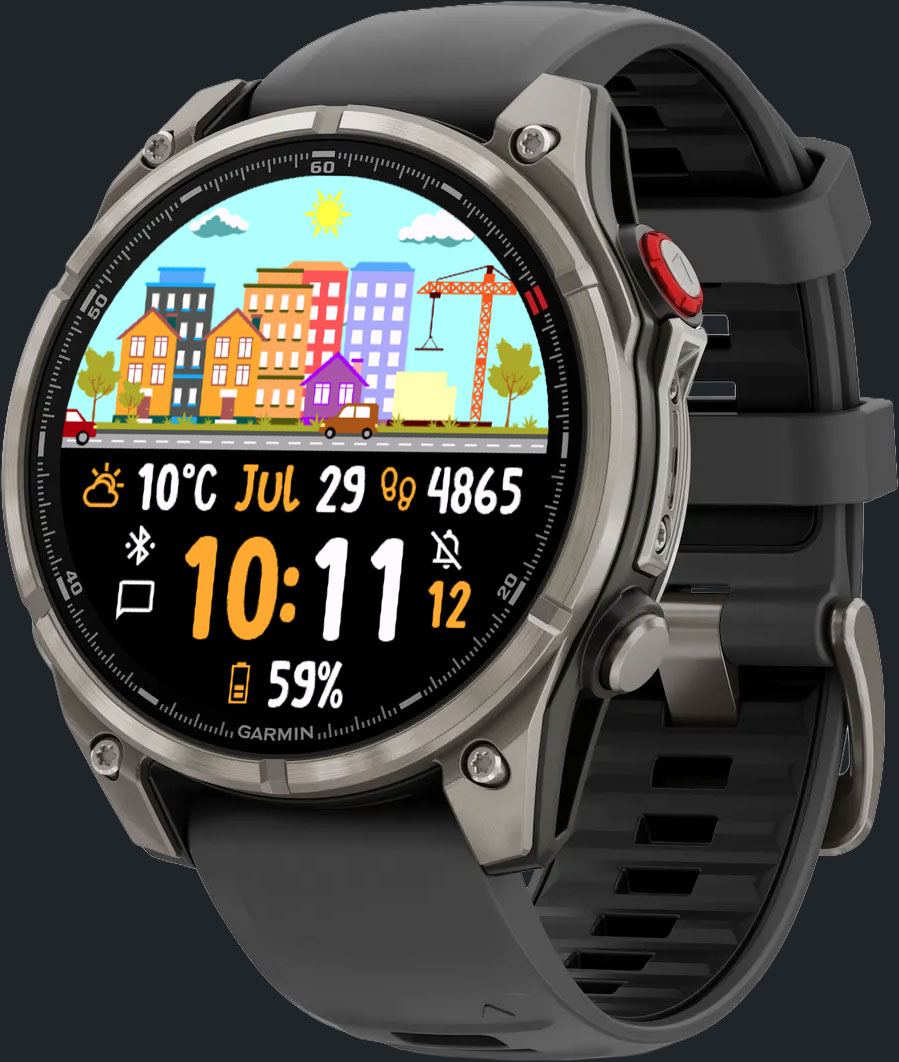
SimCity is a Garmin Connect IQ watch face built around a single idea: your activity history should look like something. Behind a bold digital clock, seven small buildings line up along a skyline — one for each of your last 7 days — and each one grows a little taller and a little more finished the closer you came to your step goal that day. Above the road, a small construction scene mirrors today's progress in real time, while the sky above shifts with the weather and the season.
Seven buildings, one per day, each shaped by how close you came to your step goal that day. They persist and reorder themselves automatically as each new day rolls in.
A dedicated tap action clears and regenerates the 7 buildings for a fresh look, using the same 7-day step history.
Sun, moon and stars by day and night, clouds, rain or snow matched to current weather, and seasonal trees and snow cover.
Assign each of 4 fields, and 2 progress bars, to any of 65+ available data points.
Tap the sky or the hour/minute digits to jump straight to a native Garmin widget, randomize your accent color, or rebuild the city.
Two independent color themes that switch automatically at sunrise/sunset, each with its own background, primary and values colors — editable right on the watch.
Seven buildings sit along the skyline, tallest and most developed where you came closest to your daily step goal. Each day at midnight the oldest building rolls off and a new empty lot appears for the new day — your last 7 days, always visible at a glance.
The sky and scenery respond to your current weather and the calendar:
SimCity automatically switches between two independent color themes at sunrise and sunset, using your saved GPS location. Each theme has its own set of colors, editable directly from the on-watch settings menu or the Garmin Connect Mobile app:
| Color | Description |
|---|---|
| Background color | The face background for this theme. |
| Hours and icons color | Accent color used for the hour digits and field icons. |
| Minutes and values color | Color used for the minute digits and the text of data field values. |
Each color picks from a curated 27-color palette, or tap-to-launch can randomize the accent color for you. See Tap Actions.
Always-on / low-power handling depends on your display technology:
4 data fields and 2 progress bars can each be set independently, from Garmin Connect IQ app settings or the on-device menu, to any of the values below. All fields are available during the trial; after the trial ends, a handful of fields keep working for free while the rest show a "paid" placeholder until you unlock the face — see Trial & Unlock.
n/a placeholder described in Troubleshooting.
Weather fields and the animated sky (current conditions, high/low temperature, precipitation, humidity, AQI, pressure and wind) can be sourced from any of three providers:
| Provider | Notes |
|---|---|
| Garmin | Built-in, no API key required. Precipitation chance and AQI are not available. |
| OpenWeatherMap | Requires a free personal API key, entered in settings. Precipitation chance is not available. |
| QWeather | Requires a free API key. Useful in regions with better QWeather coverage. |
The update interval is configurable, and sunrise/sunset can optionally be taken from the weather provider instead of being calculated locally. Weather requires internet connectivity through your paired phone, refreshed by a periodic background service.
Displays blood glucose readings pulled from your NightScout instance, in mg/dL or mmol/L, as a built-in data field — see Settings.
With Allow long press enabled (System 6 and a touch screen required), SimCity turns the face into a launcher with three independent tap zones:
Each of the three tap zones can be set to open a native widget (Steps, Climbed floors, Altitude, Summary day active minutes, Current heart rate, Respiration rate, Oxygen saturation, Body battery, Stress, VO2 max Cycling, VO2 max Running, Calories, Current weather, Ambient pressure, This week cycling/running distance, Today's suggestion, Training status, Sunrise/sunset nearest, Notifications, Solar sensor charge) — or to one of two special actions:
| Action | Effect |
|---|---|
| Rebuild the city | Clears and regenerates all 7 buildings of the skyline from your last 7 days of step data. See The City & Themes. |
| Randomize accent | Picks a new random accent color for the current theme, contrasting with the background. |
All settings are managed through the Garmin Connect IQ mobile app or Garmin Express on desktop. Open the app list, find SimCity, and tap Settings. A matching on-device settings menu is also available on the standard and AMOLED builds.
| Setting | Options | Description |
|---|---|---|
| Time format | 01:23, 01 23, 0123, 1:23, 1 23, 123 |
Controls how the time is formatted. |
| Date format | Dec 31, 31 Dec, 12/31, 31.12 |
Controls how the date field is formatted. |
| Week start | System / Sunday / Monday | First day of the week, used by the ISO week number field. |
| Blinking time delimiter | On / Off | Blinks the ":" between hours and minutes every second. |
| Show seconds | Show / Hide / Always | Controls whether a seconds field is drawn, and whether it keeps updating in low-power mode on MIP displays. |
| Allow long press | On / Off | Enables tap actions on the sky and the hour/minute digits (System 6 and touch screen required). See Tap Actions. |
| Calories goal | Number | Daily calories goal used by the Calories progress field. |
| Setting | Description |
|---|---|
| Background / Hours and icons / Minutes and values colors | The three theme colors described in The City & Themes, chosen from a 27-color palette. Editable from the on-watch ☀️ Daytime theme / 🌙 Nighttime theme menus, or from the phone app. |
Day and Night each have their own copy of every color above.
| Setting | Values | Description |
|---|---|---|
| Get system location | On / Off | When On, the watch's own GPS coordinates are used automatically — needed for sunrise/sunset and some weather providers. |
| Setting | Options | Description |
|---|---|---|
| Weather provider | Garmin, OpenWeatherMap, QWeather | Source used for all weather-related data fields and the sky. |
| Weather API key | Text | Required for OpenWeatherMap and QWeather. |
| Setting | Description |
|---|---|
| NightScout URL | Base URL of your NightScout instance. |
| Glucose units | mg/dL or mmol/L, used to format the Blood glucose field. |
| Setting | Description |
|---|---|
| Data fields: Text 1 … Text 4 | Assigns a data source (see Data Fields) to each of the 4 face positions, independently. |
| Progress bar 2 / Progress bar 3 | Assigns a data source, drawn as a radial progress dial, to each of the 2 configurable progress bars. |
| Custom time 2 / 3 zone offset | UTC offset used to compute the Custom time 2 and Custom time 3 fields. |
| Setting | Description |
|---|---|
| The image long press action | Widget or special action triggered by long-pressing the sky/skyline area. See Tap Actions. |
| Hours long press action | Widget or special action triggered by long-pressing the hour digits. See Tap Actions. |
| Minutes long press action | Widget or special action triggered by long-pressing the minute digits. See Tap Actions. |
SimCity automatically builds the right layout for your specific watch model, from three source builds:
Round MIP (transflective) displays, full feature set including tap-to-launch.
Round AMOLED displays, with a dedicated always-on display skyline and burn-in protection.
A trimmed build for older, memory-constrained devices — no on-device settings menu or tap actions.
Approach
D2
Descent
Enduro
Epix
Fenix
Forerunner
Instinct
Legacy
MARQ
Venu
Vívoactive
The city itself — the skyline, weather, sky and clock — always keeps running. What's gated is the optional data fields and progress bars.
Free to download. The city, every theme, and every data field — including the Blood glucose field from NightScout — are fully usable during the trial.
Get it on Garmin Connect IQOnce the trial ends, fields other than a handful of always-free ones (date, battery, sunrise/sunset, steps, distance, floors, heart rate, calories and current weather) show a "paid" placeholder until unlocked. The city itself keeps running throughout. Buy a one-time unlock code to unlock permanently, or press and hold anywhere on screen for a temporary unlock. See About & Unlock Code below.
Buy the unlock codeIf a field shows a short code instead of a value, here is what it means:
| Code | Meaning |
|---|---|
n/a | The selected field is not available on your device. |
n/d | There is no data to display yet. Just wait for a while. |
n/c | No connection. Check the availability of the device's connection. |
set GPS | The Get system location toggle in Settings shows this until it has a GPS fix, and a weather or sun/moon field needs your location — enable Get system location or enter coordinates manually. |
API key | You need to enter the weather provider's API key in settings. |
paid | This field is part of the Full version and requires an unlock code. See Trial & Unlock. |
Accessible from the app's settings menu. Scan the QR code with your phone to open this page, where you can find support information and purchase an unlock code.
Buy the unlock codeSimCity uses an unlock code to verify your purchase. To enter or view your code:
You can also manage settings via Garmin Express on your desktop computer.