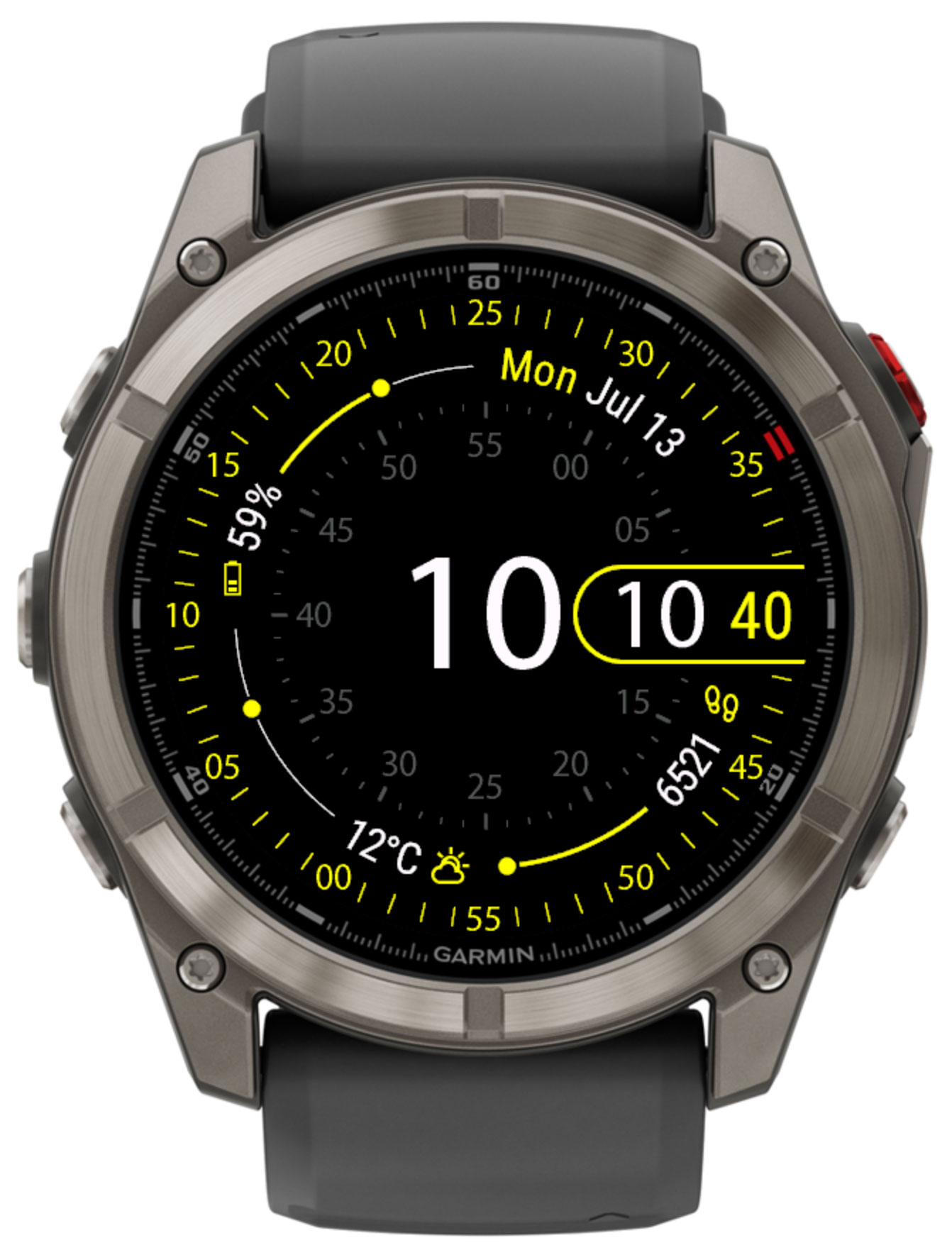
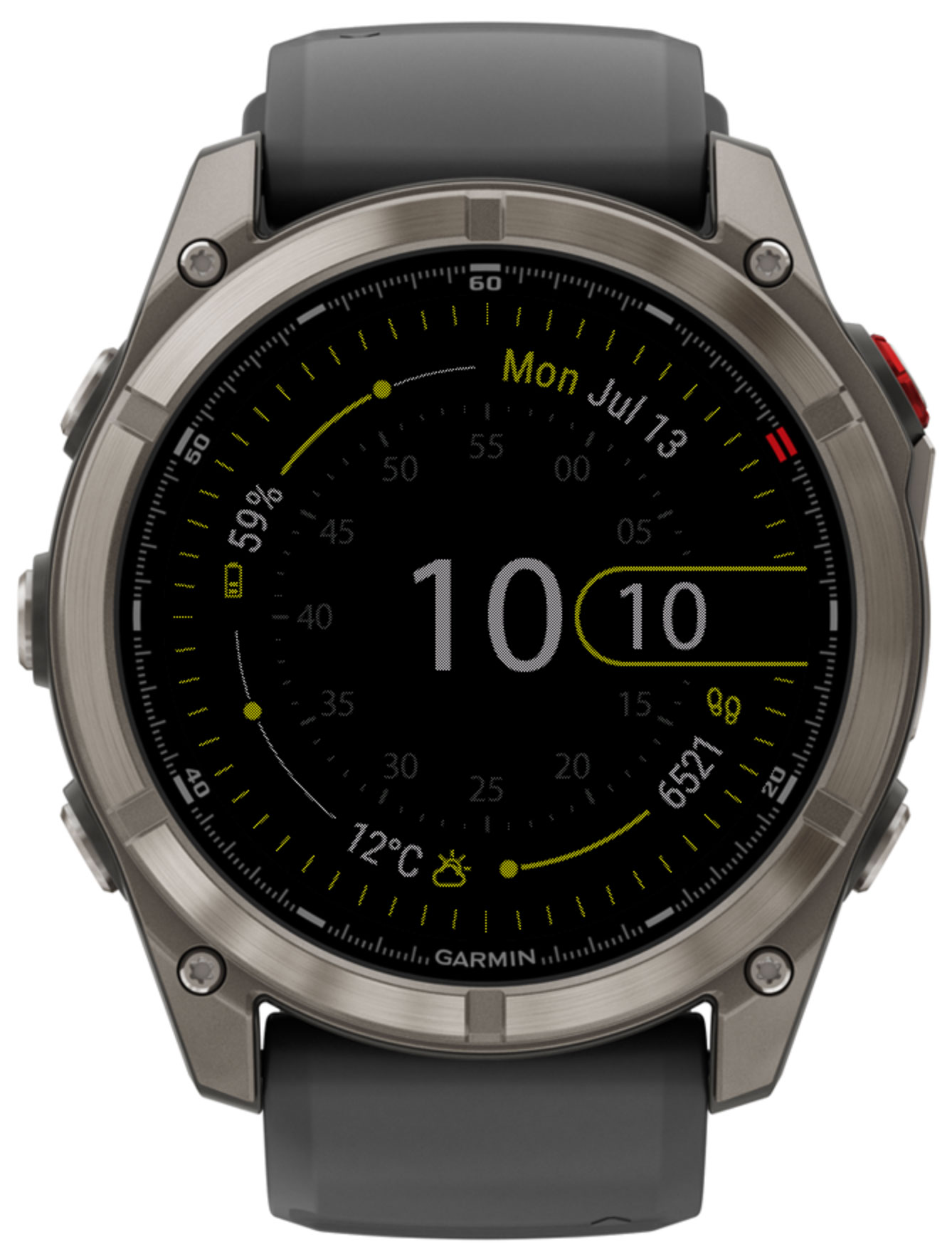
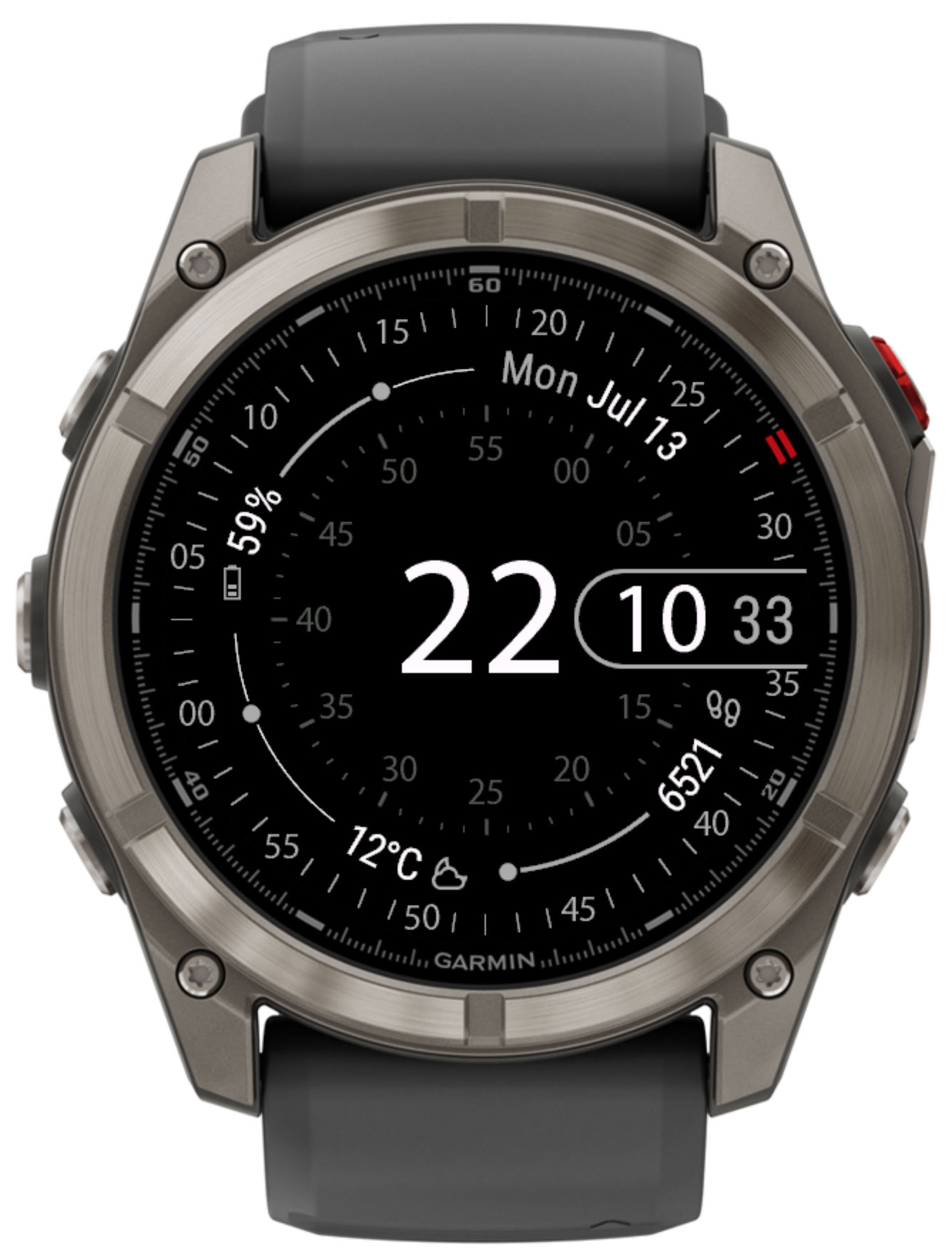
A radial watch face built around concentric minute and second rings. Four configurable fields sit in the corners, each with its own progress arc, day and night themes, multi-provider weather, and dedicated prayer-time calculation — set once, glance forever.
Available in: English, العربية, Deutsch, Nederlands, Français, Italiano, 日本語, 한국어, Polski, Português, Русский, Español, Türkçe, 简体中文
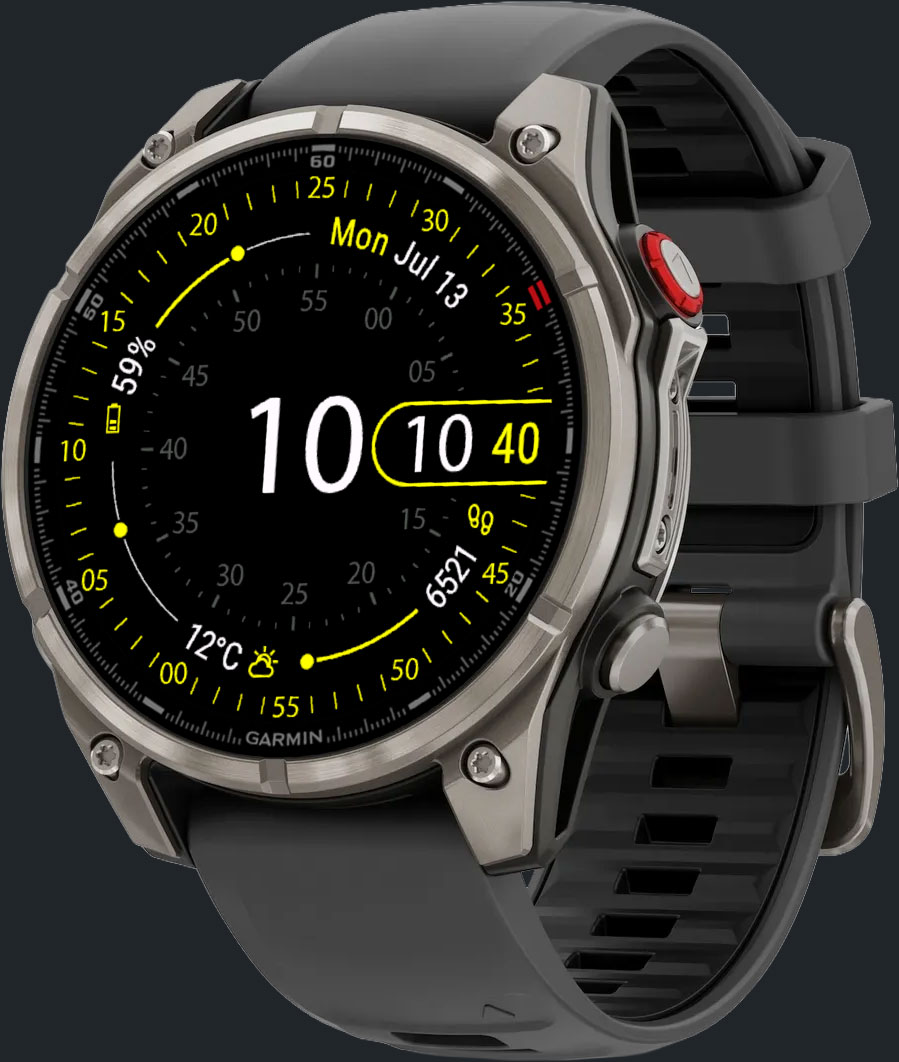
Concentric is a data-first watch face for Garmin Connect IQ devices, built around concentric rings: a bold hour/minute display at the center, an inner minute ring around it, and an outer second ring at the edge. Four fields sit in the corners between the rings, each with its own radial progress arc — assign any of over 80 available data points, from steps and heart rate to weather, moon phase and prayer times, so the face always shows exactly what matters to you.
Fill 4 corner fields from over 80 data points — activity, health, weather, sun & moon, prayer times, and more.
Each field can show a radial progress arc — steps, floors, battery, heart-rate range, sunrise/sunset position and more — at a glance.
Give each field a low and a high icon color — the icon smoothly shifts between them as the value moves through its range, so color alone tells you where you stand.
Two independent color themes that switch automatically at sunrise/sunset (or times you set), each with its own background, primary, secondary and value colors.
Choose Garmin's built-in weather, OpenWeatherMap, QWeather or MET Weather, with automatic background refresh.
Built-in Namaz calculation with 7 preset methods (Jafari, Karachi, ISNA, MWL, Makkah, Egypt, Tehran) or fully custom parameters.
Subscribe to NightScout to show blood glucose readings on the face.
The hour and minute are shown in the center. Around them, an inner ring marks the minutes, and an outer ring at the edge marks the seconds. Between the two rings, four fields sit in the corners — top-right, bottom-right, bottom-left and top-left — each rendered as a value with an icon and, where the data supports it, a radial progress arc. Tapping a corner field launches its associated Garmin complication, if the watch and connection allow it.
Concentric automatically switches between two independent color themes at sunrise and sunset (using your saved GPS location), or at custom times you define. Each theme has its own set of colors:
| Color | Description |
|---|---|
| Background | The face background color. |
| Primary | Accent color used for the second ring, the hour/minute digit outline, and field icons by default. |
| Secondary | Accent color used for the inner minute ring. |
| Values | Color used for the hour/minute digits and field value text. |
Every corner field has its own Low value color and High value color. As the field's current value moves through its range — from the low end toward the high end of whatever it's tracking — the icon smoothly blends from the low color to the high color, instead of jumping between two fixed states. The further along the range, the closer the icon gets to the high color.
This turns the icon itself into a second, at-a-glance indicator alongside the progress arc — useful for anything with a meaningful range:
By default, the low color is your theme's Primary color and the high color matches the low color (no gradient) — set both independently per field in Settings to enable the effect.
On AMOLED devices with an always-on / low-power display mode, you can choose how much of the face stays visible:
| Option | Behaviour |
|---|---|
| Off | An empty screen is shown in low-power mode, to save the most battery. |
| Only time | Only the time is shown while the watch is in low-power mode. |
| Show all fields | The full face, with all rings and fields, remains visible in low-power mode. |
Each of the 4 corner fields can be set independently, from Garmin Connect IQ app settings, to any of the values below.
n/a placeholder described in Troubleshooting. Fields marked ⭐️ require the unlock code.
Weather fields (current conditions, high/low temperature, precipitation, humidity, AQI, pressure and wind) can be sourced from any of four providers:
| Provider | Notes |
|---|---|
| Garmin | Built-in, no API key required. Precipitation chance and AQI are not available. |
| OpenWeatherMap | Requires a free personal API key, entered in settings. |
| QWeather | Requires a free API key. Useful in regions with better QWeather coverage. |
| MET Weather | Data from the Norwegian Meteorological Institute, no API key required. |
The update interval is configurable in 15-minute steps up to 3 hours, and sunrise/sunset can optionally be taken from the weather provider instead of being calculated locally. Weather requires internet connectivity through your paired phone.
Concentric can calculate namaz (salah) times directly from your GPS location, with no internet connection required, and display the next prayer or a countdown to it as a data field.
From the on-watch settings menu, pick one of 7 preset calculation methods:
| Method |
|---|
| Jafari |
| Karachi |
| ISNA |
| MWL (Muslim World League) |
| Makkah |
| Egypt |
| Tehran |
Advanced users can instead enter custom calculation parameters (Fajr/Isha angles, Maghrib offset, and high-latitude adjustment) as a raw comma-separated value through the Garmin Connect app or Garmin Express.
Concentric can pull data from third-party sources and show it directly as a face field:
Displays blood glucose readings pulled from your NightScout instance, in mg/dL or mmol/L.
All settings are managed through the Garmin Connect IQ mobile app or Garmin Express on desktop. Open the app list, find Concentric, and tap Settings. Most devices also offer a shorter settings menu directly on the watch (hold the settings button while the face is showing).
| Setting | Options | Description |
|---|---|---|
| Values font size | 7–13 | Size of the field value text. |
| Seconds font size | 7–13 | Size of the second-ring numbers. |
| Date format | Dec 31, 31 Dec, 12/31, 31.12 |
Controls how the date field is formatted. |
| Date language | System / English | Language used for day-of-week and month abbreviations. |
| Week start | System / Sunday / Monday | First day of the week, used by the ISO week number field. |
| Allow long press | On / Off | Enables tapping a corner field to launch its complication (System 6 and touch screen required). |
| Screen long press action | None, a complication, randomize accent color, switch background, or switch AOD mode | Action triggered by a long press on the center of the face. |
| Setting | Values | Description |
|---|---|---|
| 📍 Get system location | On / Off | When On, the watch's own GPS coordinates are used automatically — needed for sunrise/sunset, prayer times, and some weather providers. |
| 📍 Latitude / Longitude | Decimal degrees | Manual coordinates, used only when auto-location is disabled. |
| Setting | Description |
|---|---|
| ☀️ Day start time / 🌙 Night start time | Custom h:m start time for each theme; leave empty to switch automatically at sunrise/sunset. |
| 🎨 Background / Primary / Secondary / Values color | Set independently for the day and night theme. |
| 🎨 Low value color / High value color | Per corner field — set the two ends of the icon's color gradient. The icon smoothly shifts from the low color to the high color as the field's value moves through its range. Same by default (no gradient) until you set them differently. |
| Setting | Options | Description |
|---|---|---|
| 🌦️ Weather provider | Garmin, OpenWeatherMap, QWeather, MET Weather | Source used for all weather-related data fields. |
| 🌦️ Weather API key | Text | Required for OpenWeatherMap and QWeather. |
| 🌦️ Weather update interval | 0:15 – 3:00, in 15-minute steps | How often weather data is refreshed in the background. |
| ☀️ Sunrise/Sunset from Weather provider | On / Off | Uses the weather provider's sunrise/sunset instead of a local astronomical calculation. |
| Setting | Description |
|---|---|
| Field 1 – 4 (top-right, bottom-right, bottom-left, top-left) | Assigns a data source (see Data Fields) to each corner. |
| No-fly time alert | Choose one field slot to temporarily switch to a fly-safe countdown after a logged dive, following DAN/PADI/NAUI guidance (12–24h depending on dive profile). |
| Setting | Description |
|---|---|
| Namaz time settings | One of 7 preset calculation methods (on-watch menu) or a custom parameter string (phone app / Garmin Express). |
| Setting | Description |
|---|---|
| NightScout URL | Base URL of your NightScout instance, used by the blood glucose field. |
| Glucose units | mg/dL or mmol/L. |
| Setting | Options |
|---|---|
| Fields in AOD (only for AMOLED) | Off, Only time, Show all fields |
Concentric automatically builds the right layout for your specific watch model — a standard layout, an AMOLED-optimised layout, or a trimmed layout for older, memory-constrained devices. Supported device families:
Show full device listApproach
D2
Descent
Enduro
Epix
Fenix
Forerunner
Instinct
Legacy
MARQ
Venu
Vívoactive
Free to download. The core watch face — rings, layout, themes, and a solid set of core time, activity and weather fields — is fully usable.
Unlocks every ⭐️ field — weekly summaries, sun & moon, prayer times, Body Battery, stress, VO2 max, ambient pressure & wind, NightScout, and more — with a one-time unlock code.
Buy the unlock codeIf a field shows a short code instead of a value, here is what it means:
| Code | Meaning |
|---|---|
n/a | The selected field is not available on your device. |
n/d | There is no data to display yet. Just wait for a while. |
n/c | No connection. Check the availability of the device's connection. |
no GPS | You need to get your coordinates first (see Location settings) — needed for sunrise/sunset, prayer times, and some weather providers. |
API key | You need to enter the weather provider's API key in settings. |
paid | This field is part of the Full version and requires an unlock code. |
Accessible from the app's on-watch settings menu, where available. Scan the QR code with your phone to open this page, where you can find support information and purchase an unlock code.
Buy the unlock codeConcentric uses an unlock code to verify your purchase. To enter or view your code:
You can also manage settings via Garmin Express on your desktop computer.
© 2022-2026 VeshchiyOleg